A Windows and Mac (Apple silicon and Intel) companion app for Mark 16 owners. Using a card reader, you can add games, edit thumbnails, intros, maker and release date, back up saves and save states, export selected or all screenshots, and delete unused firmware, screenshots and save data. The interface switches between Japanese and English. No Python installation is needed. This beta is for Mark 16 development units.
Prepare your card on your computer, then return it to Mark 16. This app does not play games or connect directly to the console.
01 · Add and organise games
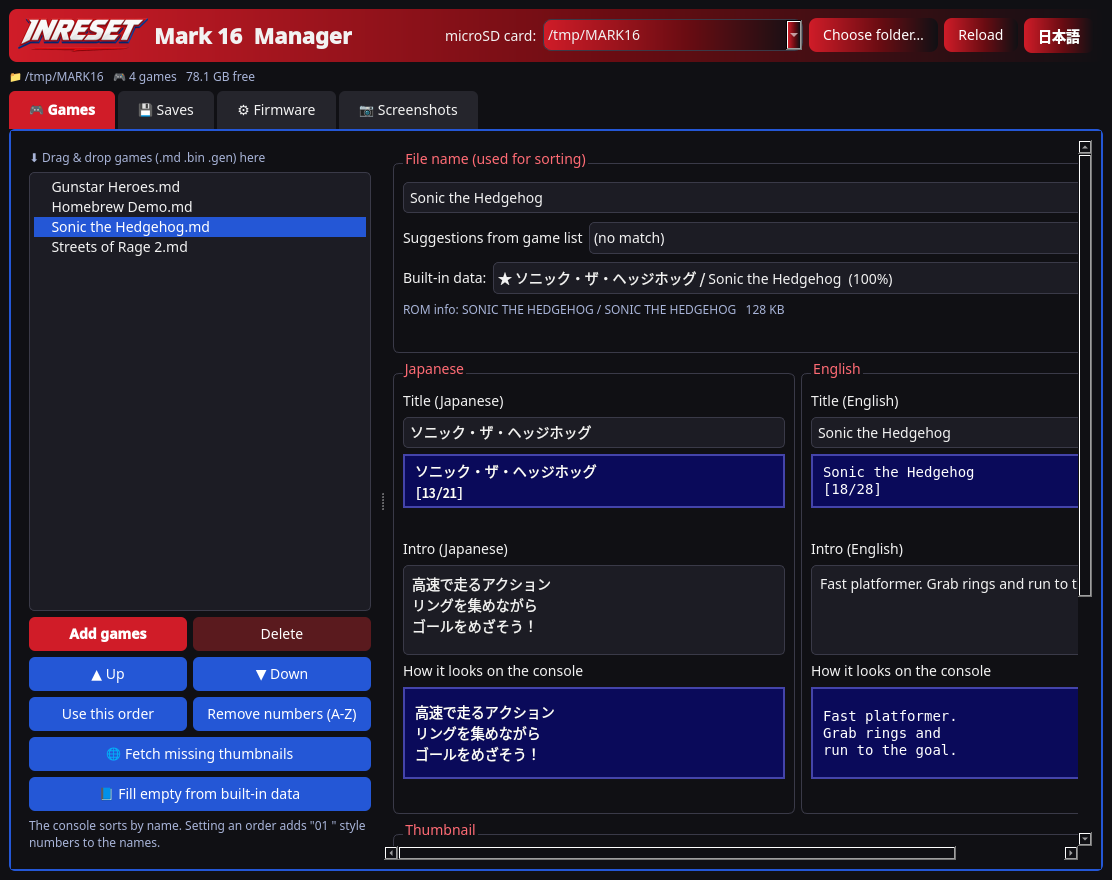
Choose the microSD drive, then drag and drop your ROM files into the game list (or use Add). Files are copied to /MARK16/ROMS. Supported extensions: .md, .bin, .gen, up to 8MB per game. Titles up to 8MB (such as Super Street Fighter II) need Mark 16 firmware v41. Older firmware still refuses files over 4MB.
View, rename and remove games on the card.
Move games up or down and save the order with numbered filename prefixes.
The built-in 555-title database suggests names, genres, publishers and years. Suggestions may need correction.
Game screen (English). Title and intro editing is on the same tab. Click an image to see it at full size. Demo content; game files and artwork are not included. Game names in the list are for illustration; rights belong to their owners.
02 · Edit file names
The ROM filename sets the sort order in the console menu. Rename it in the app; related title, intro and thumbnail files follow the change. The name shown on the console is set separately with the title below (console firmware v41d2 or later). Database suggestions help you enter a name.
03 · Japanese & English titles and short intros
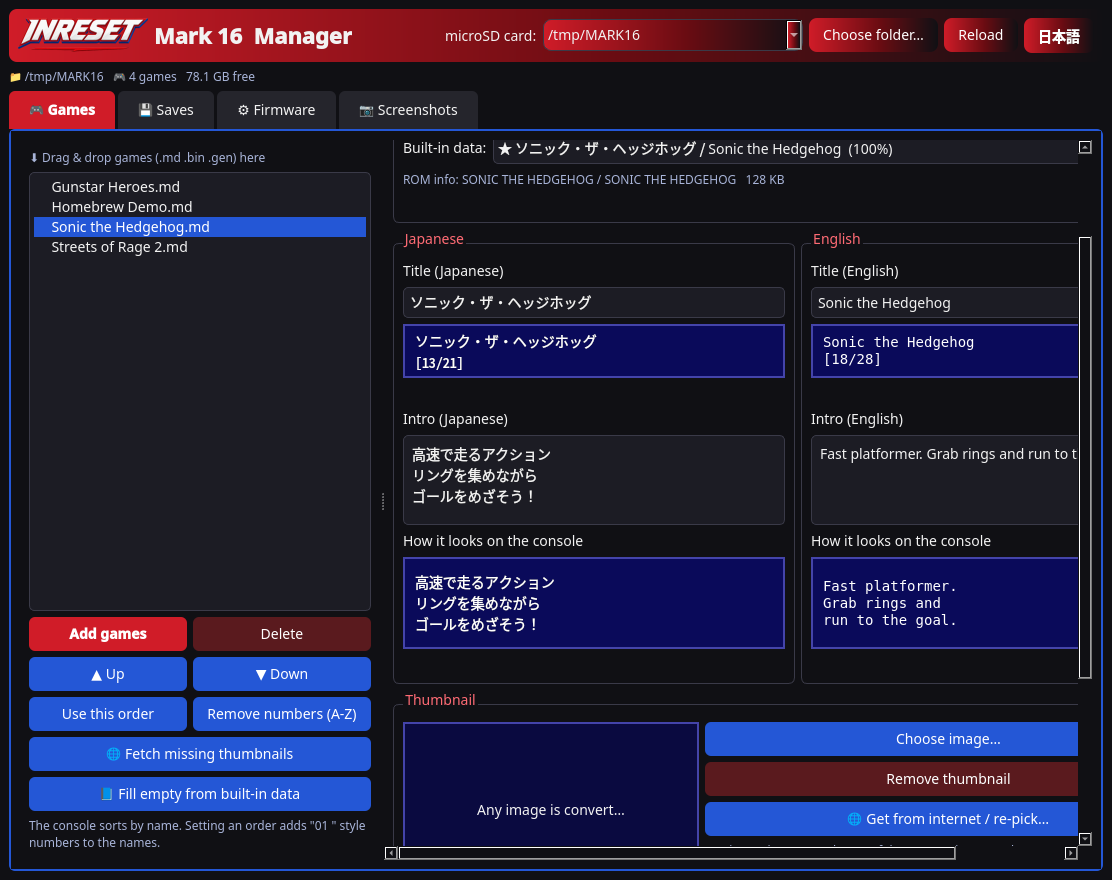
Give each game a title and an intro in Japanese and English, with a live preview of how they look on the console. The app warns about titles too long for the list, titles over 63 bytes, and characters the console font does not have. Intros: up to 4 lines, 12 characters per line for Japanese or 16 for English (UTF-8, up to 512 bytes). Japanese follows the same oidashi line-break rules as the console menu, and combining dakuten is counted as one character, matching the console. English wraps at word boundaries.
132 built-in games: well-known games come with original short intros and official titles written for this app. When you add a ROM, they are filled into empty fields only if the name (file name, ROM header name or serial) matches exactly. You can turn this off. Text you wrote is never overwritten.
Bulk fill: the “Fill empty from built-in data” button does the same for games already on the card. Similar names are only offered as suggestions, never applied automatically.
Works with older firmware: older firmware ignores the titles and shows the file name, and still reads the intros as before. Titles show on the console from console firmware v41d2 or later.
Maker and release date: you can add these for SD games. From console firmware v42d, the maker appears above the picture and the date below the intro. Built-in console games do not use these fields.
Title and intro editor (English interface), with live console previews. Demo content written for this page; game files and artwork are not included.
04 · Make thumbnails
Choose or drop an image to convert it to a 16-colour .m16 (v2) thumbnail, using colours from the Mega Drive’s 512-colour palette. The stored image is 96×28 pixels; the console displays it at 96×56. Preview and save it alongside the intro text. Older four-colour (672-byte) thumbnails can still be read. When you add a game, a matching picture can also be fetched automatically from libretro-thumbnails and saved on your computer only (on by default; you can turn it off). Picture rights belong to their owners; personal use only. Existing thumbnails are not overwritten.
05 · Back up and restore saves
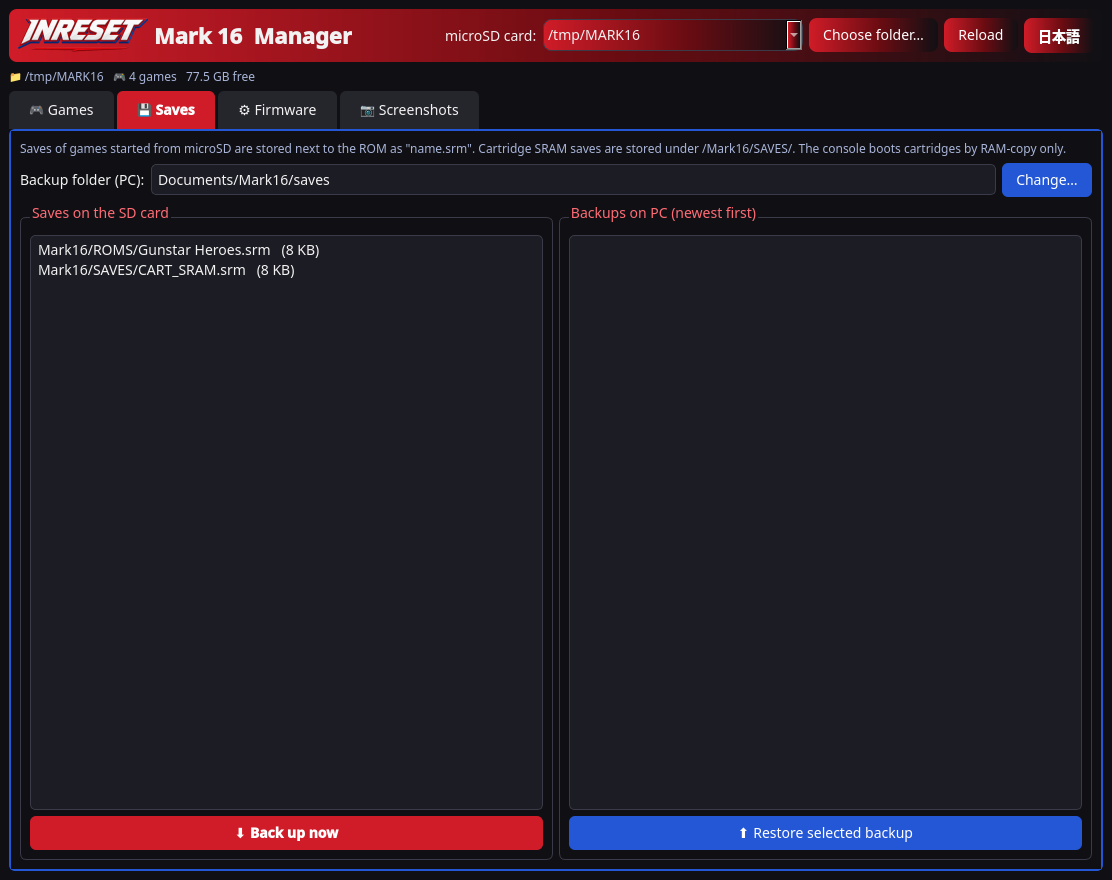
Copy the card’s .srm files into a dated backup folder on your computer, with SHA-256 checks. Restore a selected backup to the card; existing files are kept as .srm.bak before replacement. Save states (STATES/*.mst) are included. Saves smaller than 1 KB are shown in bytes. An empty (0-byte) backup is never restored over a real save without asking first.
This includes /MARK16/SAVES/CART_*.srm files saved by cartridge RAM-copy mode, as well as legacy saves beside ROMs. It manages files already on the card—it cannot read or write a physical cartridge’s SRAM.
Save management screen (English interface). Demo content.
06 · Place firmware files
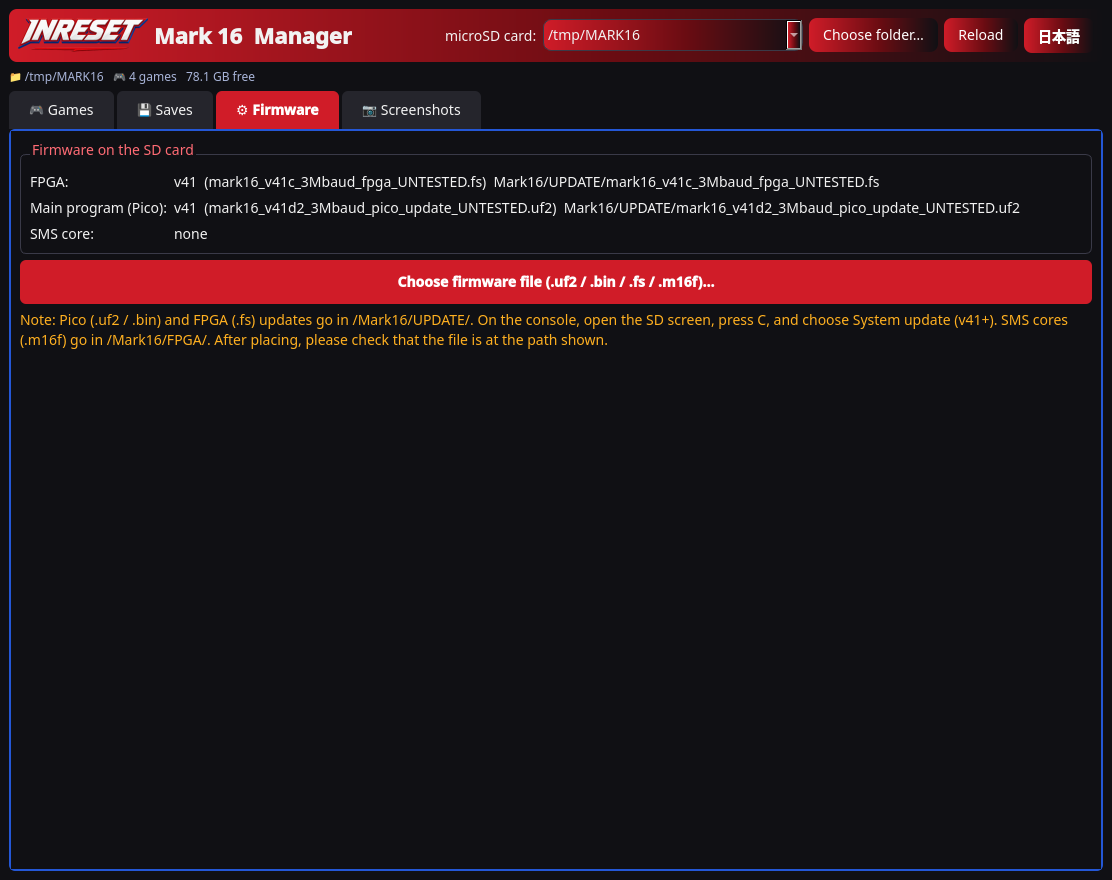
Console main-program files (.uf2 or .bin) and FPGA .fs files are saved to /MARK16/UPDATE under their original names. After writing, the app checks that the file exists and that its size and contents match, then shows the saved location. SMS cores (.m16f) go to /MARK16/FPGA. The app warns when a filename looks older than the file already on the card.
On console firmware v42g or later, choose Settings → Console update to apply files from this UPDATE folder. Displayed versions describe files on the card, not a live check of your console. A leftover /Mark16/FPGA/mark16_pico.uf2 created by v0.1.3 is unused by the console and can be deleted.
Firmware placement screen (English interface). Console and FPGA files are saved to /MARK16/UPDATE/ under their original names.
07 · Export screenshots
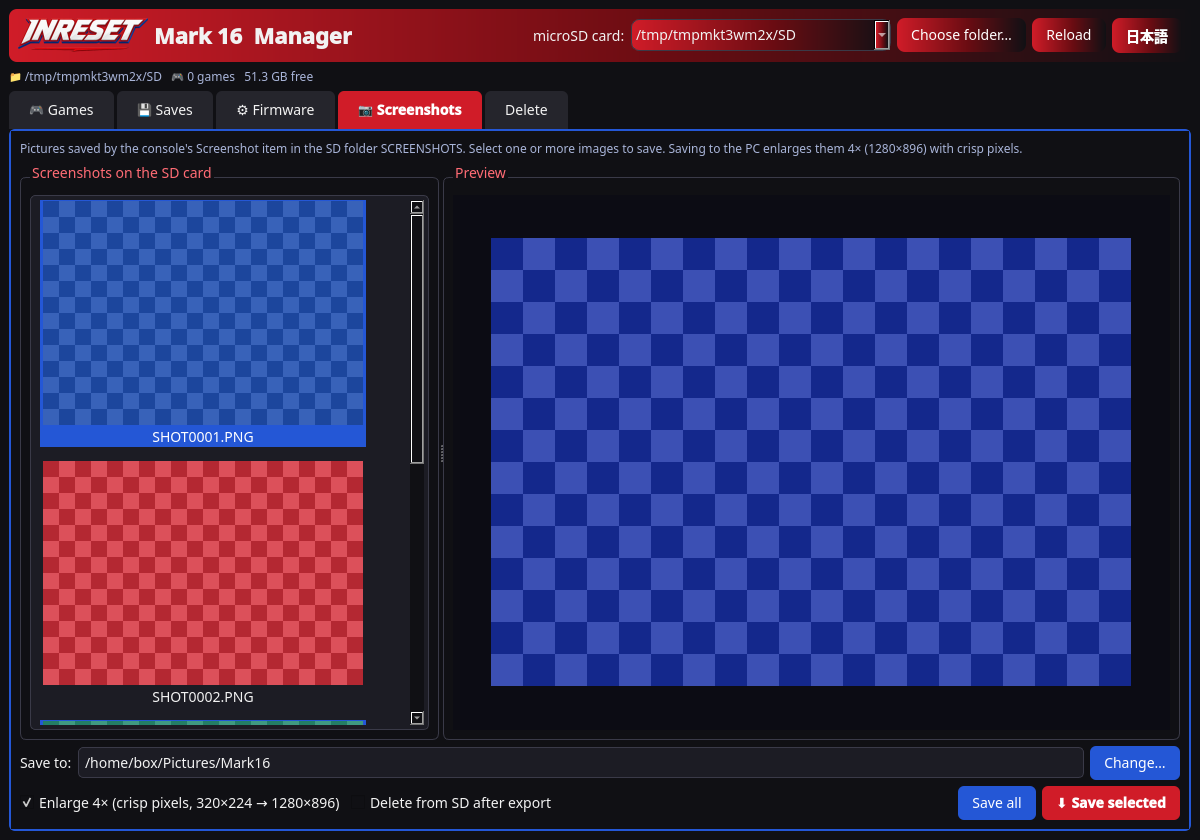
Browse images the console saved in /MARK16/SCREENSHOTS (and older SHOTS files) and export them to PNG on your computer. Select one or more images to save. If nothing is selected, Save selected is disabled. A Save all button is also available. They are saved at 4× with nearest-neighbour scaling and no blur (320×224 → 1280×896). If the same image is already in the destination, it is not written twice. Older .m16s files can still be read. List thumbnails are larger, and the selected image is shown in a preview on the right, scaled with nearest neighbour so pixels stay sharp. You can drag the divider to resize the preview.
The app cannot capture the console screen itself; it exports pictures already stored on the card.
Screenshots tab (English). You can save only the selected images. Demo content.
08 · Delete firmware, screenshots and save data
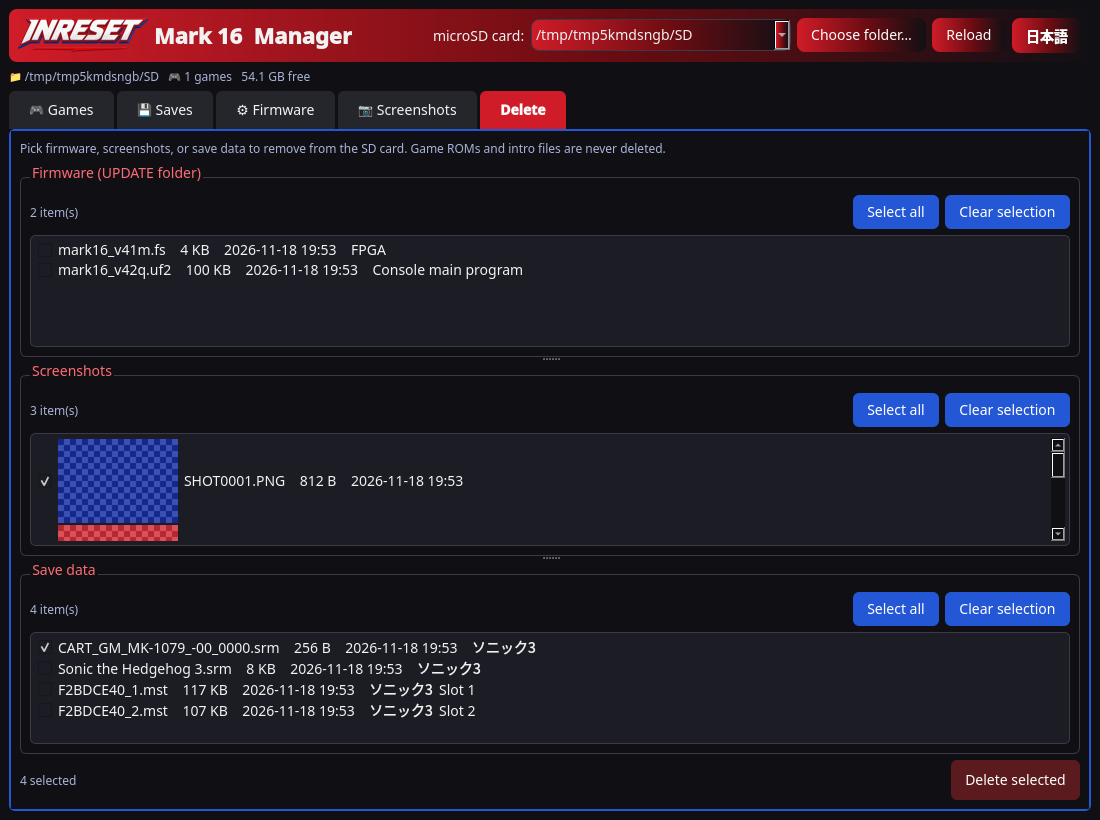
The Delete tab lets you pick firmware (the UPDATE folder), screenshots, and save data (including save states) on the SD card and remove them. A confirmation dialog appears first, and the selected files are moved to the computer’s Trash so you can restore them later. Game ROMs and intro files (INFO) are never deleted.
Delete tab (English). Demo content; game files are not included. Game names in the list are for illustration; rights belong to their owners.
This is a beta for Mark 16 development units. Back up your microSD card before making changes. The app does not handle EEPROM saves, and it cannot read or write a physical cartridge’s SRAM.
Use only game data and images you have the right to use. No ROMs are distributed here.
Getting started
Turn off Mark 16, remove its microSD card and insert it into your computer using a card reader.
Download the ZIP for your computer, extract it completely and open Mark16Manager.
Select the SD drive at the top. Check the drive carefully; do not select your system drive or another storage device.
Add games, edit names, intros and thumbnails, then save your edits. Back up saves if needed. You can select screenshots to save to your computer. Unused firmware, screenshots and save data can be removed from the Delete tab.
Close the app and safely eject the card using your operating system.
Put the card back into Mark 16, then turn the console on.
microSD folder layout
/MARK16/
├── ROMS/         Game ROMs (.md / .bin / .gen)
├── INFO/         Japanese / English titles and intros, plus maker and release date
├── THUMBS/       Menu thumbnails (.m16)
├── SAVES/        Save files, including CART_*.srm
├── STATES/       Save states (.mst)
├── UPDATE/       Console and FPGA update files (Settings → Console update)
├── FPGA/         SMS cores (.m16f). Older app builds may have left unused update files here
├── SCREENSHOTS/  Screenshots taken on the console (SHOTnnnn.PNG)
└── SHOTS/        Older image files (still readable in the app)
Example intro: INFO/Game.bin.en.txt · Example title: INFO/Game.bin.title.en.txt (one line, up to 63 bytes) · Maker and date: INFO/Game.bin.meta.txt · Thumbnail: THUMBS/Game.bin.m16. Older saves beside ROMs are also found by the app. If the card already has /MARK16/, that folder is used (the match is case-insensitive, so an older Mark16 folder counts). A new /MDTANG/ folder is never created. If the card already has only /MDTANG/, the app can still read it, and the first write moves it to /MARK16/. On a new card with neither, the app creates /MARK16/.
What’s new in v0.2.1
Main changes since the previous public release, v0.1.9.
New Delete tab: pick firmware (the UPDATE folder), screenshots, and save data (including save states) on the SD card and remove them. A confirmation dialog appears first, and selected files are moved to the computer’s Trash. Game ROMs and intro files (INFO) are never deleted.
Screenshots can be saved to the computer one selection at a time (multi-select is allowed). Save selected is disabled when nothing is selected. A Save all button is also available. Export is still 4× with nearest-neighbour scaling (320×224 → 1280×896).
List thumbnails are larger, and a resizable preview shows the selected image, scaled with nearest neighbour so pixels stay sharp.
A new MDTANG folder is never created. All creates and writes go under /MARK16. If a card already has only MDTANG, the app can still read it, and the first write moves that folder to /MARK16.
This release includes a Mac (Apple silicon) build again.
Download v0.2.1
Beta, unsigned builds for Mark 16 development units. Choose the version for your computer and extract the ZIP completely before opening.
Windows
v0.2.1 · Beta 60.51 MB (60,509,487 bytes)Windows ZIP ↓
Build and launch smoke tests passed on Windows (x64), macOS (Apple silicon) and macOS 15 (Intel) in CI. These are test environments, not minimum OS requirements. Other versions, including consumer Windows releases, have not been verified; a minimum supported OS is not established.
Only continue if the file came from this official page. Do not disable your system’s security features.
Windows
Extract the whole ZIP, keep the folder contents together and open Mark16Manager.exe inside the Mark16Manager folder. If SmartScreen shows “Windows protected your PC”, choose More info → Run anyway, if available.
Mac
Extract the ZIP and move Mark16Manager.app to Applications. Right-click it and choose Open, then confirm Open if offered. If blocked, check System Settings → Privacy & Security → Open Anyway.
Fallback, only for this trusted download: open Terminal and run the command below (adjust the path if you placed it elsewhere). It removes quarantine only from this app.